How Google Reviews Help Party Rental Companies Rank (Free Review Card Template)

The best way to get Google reviews is to ask every happy customer, a few at a time, shortly after their event, with a direct link to your review page. A steady trickle of fresh reviews beats a one-time rush. Skip review gating and rewards, because Google can remove reviews and restrict your profile. And grab the free, editable review card below so you never have to make the awkward ask. Read on for the details.
If you’re like me, asking a customer for a Google review can feel a little needy, especially right after you’ve rolled up inflatables or loaded a trailer full of chairs. I’ve skipped asking way more than once.
Why Google reviews matter for your rankings and visibility
When someone searches “bounce house rental near me,” Google decides which few companies to show. Reviews are one of the things that help it decide. They also help the customer decide who to call.
It’s not only the star rating. Fresh reviews matter. A 2025 GatherUp survey found that 44% of consumers were most influenced by a business’s most recent review content (GatherUp). Many local SEO pros also believe that how often new reviews come in affects your Maps and local pack rankings.
Reviews also do something your own website can’t. They put real words from real customers on your profile about what you rent and where you rent it. A customer who writes about the water slide at their backyard party in Norman is telling Google, and AI search tools, what you do and where you do it.
A steady flow of reviews beats a big number
Some agencies will jump in and recommend emailing every past customer at once. The review count jumps way up, rankings may bump for a bit, and then the benefit fades away.
There’s another problem. Google’s systems watch for patterns, and you should be aware that sudden spikes in review volume can trigger removals when they look unnatural. I’ve found that rankings can slip away when new reviews stop for a few weeks or more.
Think drip irrigation, not a fire hose. If you have 300 past customers, send the request to 10 or 15 of them a week instead of all 300 on day one.
Then keep asking every new customer after each event. A constant flow of real reviews keeps your profile looking active, and that’s what you want customers (and Google) to see.
When and how to ask for a Google review
The best time is shortly after the event, while they’re still smiling. The memory of the party is fresh and so is the good feeling.
Should you send it the same evening or give them a day to recover? I lean toward the next morning. Nobody wants a review request while they’re still sweeping up confetti. Try both for a month and see which gets more replies.
The easiest way is to automate it. Many party rental companies use Go High Level for this, and it works great. A plain email or text that goes out a set time after the booking works too, as long as it has a direct link to your Google review form.
To get that link, sign in to your Google Business Profile, open Read reviews, then choose Get more reviews. Copy the link or download the QR code (Google Business Profile Help). Google changes the button names now and then, so look for the share icon if you don’t see those exact words.
Here’s a short request that works:
Thanks again for letting us be part of your event! If you have a minute, would you share how it went on Google? Here’s the link: [your review link]. It means a lot to a small business like ours.
Keep it short. One request, one link, same message for every customer.
Photos and real details make reviews even better
Photos help. Some local SEO analysts report that reviews with photos often stay near the top of the review section longer (Sterling Sky). They also show future customers what your setups really look like.
Details help too. A review that describes the event, the rental, and the neighborhood gives search engines real context about your business: what you do, what you provide, and where you do it.
The trick is how you ask. Invite people to share their experience in their own words, and welcome a photo if they have one. Don’t tell them what to write. Google frowns on merchants requesting specific content in reviews, so keep the request open and let customers tell the story.
What not to do: review gating and other no-nos
None of us want a strike on our Google Business Profile. It’s too important to risk. Here’s what Google’s review policy says not to do:
- Review gating. Don’t screen customers and send only the happy ones to Google. Sending unhappy customers to a private feedback form, without giving them the Google link too, is the classic example. Google’s policy says not to “selectively solicit positive reviews from customers.”
- Rewards for reviews. No discounts, freebies, or prizes in exchange for a review.
- Asking for specific wording. Don’t request particular words, and don’t ask for reviews that name a staff member. Google also bars asking staff to hit a review quota.
The risk is real. Google says incentivized or biased reviews will be removed, and a profile caught gaming reviews can lose reviews or face restrictions. It’s not worth it.
A “how did we do?” survey is fine only if everyone gets the direct Google link, whatever stars they pick. Same ask, same page, same choice for every customer.
The review card method (no awkward ask)
This is my favorite way to get reviews, because you or your employees never have to directly ask. I’m sure guilty of skipping review requests in person. It can feel awkward and needy.
A review card is simply a business card with a QR code on it. When you or your crew are done loading up equipment after an event, just hand it over and say, “We enjoyed working with you. Please keep us in mind for your next event.” That’s it. Later, when they look at the card, they see the invitation to leave a review and the QR code does the rest.
Google itself suggests sharing your review link or QR code in places like receipts and thank-you emails (Google Business Profile Help).
You have two choices for where the QR code goes:
- Straight to your Google review form. This is the one I recommend. It’s simple, and it’s the most fail-proof option.
- A “how did we do?” page first. If you go this way, put your direct Google review link on the next page for everyone, no matter what rating they choose. Otherwise it’s review gating.
Keep the handoff casual and pressure-free. Hand it over, say thanks, and let them take it home.
Free review card template for party rental companies
I made a review card for you, and it’s free. It’s a two-sided, business-card-size design in Canva. Everything is editable: add your logo, change the wording, swap the colors and fonts, and make it look like your company.
Get the free Canva review card template
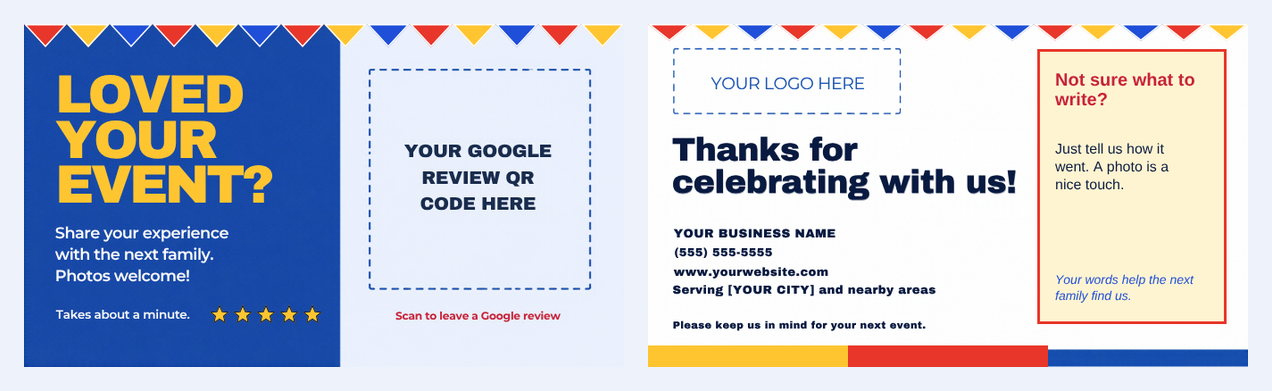
Here’s how to make it yours. You only need a free Canva account.
- Open the template link above and click Use template. This puts your own copy in your Canva account. The original stays untouched, so you can’t break anything.
- Add your logo. Go to the back page and click the dashed “Your logo here” box. Press Delete. Then click Uploads in the left sidebar, choose Upload files, and drag your logo onto the card.
- Change the wording. Double-click any text to edit it. Replace the business name, phone number, website, and “[YOUR CITY]” with your own.
- Copy your Google review link. In your Google Business Profile, open Read reviews, then Get more reviews, and click Copy.
- Make your QR code in Canva. On the front page, click Apps in the left sidebar and search for QR Code. Open it, paste your review link, and click to add the code to your design. Drag it over the dashed QR box and resize to fit, then delete the dashed placeholder box.
- Test it. Point your phone camera at the QR code on your screen. It should open your Google review form. Test it on another phone too.
- Change colors and fonts if you like. Click any shape or text, then use the color swatch or font menu at the top of the editor. Keep the QR code dark on a light background so it scans easily.
- Download and print. Click Share, then Download, choose PDF Print, and take it to your local print shop or order through Canva Print or another online source. The card is standard business-card size.
Canva updates its menus from time to time, so the names may look slightly different. The Apps panel and the left sidebar are the places to look. Canva’s built-in QR code is static, so if your review link ever changes, make a new code and reprint.
Share it, and tell me how it goes
Feel free to share the template anywhere you like. Pass it to a friend in the rental business (or any business), post it in your group, wherever you’d like.
If you share it, it would mean a lot if you’d credit Todd Hayes at Hayes Digital Marketing (toddhayes.com) for the free template.
And if you use the card, I’d love to hear about it. Email me at todd@toddhayes.com with a picture of your edited card, or just let me know if it was helpful.
More free tools for rental owners are on the Free tools page.
Sources
- Google: Prohibited and restricted content
- Google Business Profile Help: Tips to get more Google reviews
- GatherUp: review recency and consumer behavior
- Sterling Sky: What is the Effect of Leaving Photos with Google Reviews
- Search Engine Roundtable: Google Updates Reviews Policy To Restrict Staff Mentions & Solicitations
Have news for rental owners? Send us a tip.

